
Part 02: Enhancing UI with Inline Chat
Now, you’ll improve the loading experience using Copilot’s inline chat.
NOTE: This exercise does supply specific prompts to type, but as part of the learning experience we encourage you to discover how to interact with Copilot. Feel free to talk in natural language, describing what you’re looking for or need to accomplish.
Update the loading state
Section titled “Update the loading state”-
In the Solution explorer under the Store project open Components/Pages/Products.razor.
-
Find the “Loading…” text in the code.
-
Select this text and right-click.
-
Choose “Chat” or press
Alt+/. -
In the inline chat, type:
Update this razor to have a simple spinner style, using built in bootstrap styles.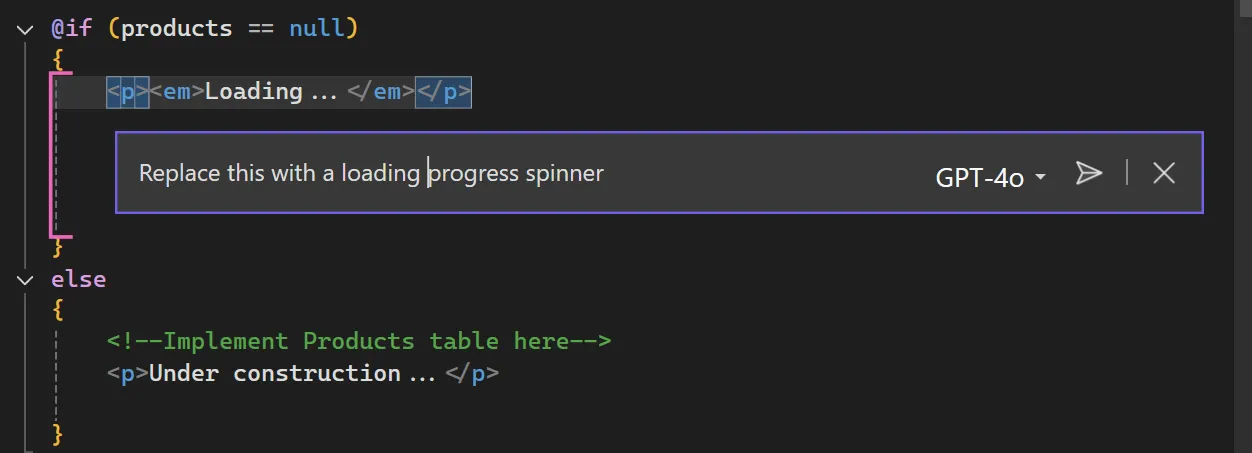
Review and run the change
Section titled “Review and run the change”-
Select Tab to accept the changes, and it should look similar to:
<div class="spinner-border text-primary" role="status"><span class="visually-hidden">Loading...</span></div> -
Run the application to see your new loading spinner in action.
-
Stop debugging and close the application
Key Takeaway: Inline chat allows you to make targeted improvements to your code without leaving your editor context.
Back: Part 01 - Code Completion with Ghost Text | Next: Part 03 - Referencing Code Files in Chat