
Part 09: MCP Servers
Model Context Protocol (MCP) is an open protocol that standardizes how applications provide context to large language models (LLMs). MCP servers extend GitHub Copilot’s capabilities by connecting to external tools and services, giving it access to real-time data and the ability to perform actions.
In this part, you’ll learn how to add MCP servers to Visual Studio and use them to get information about optimizing your application.
Adding MCP Servers from the Gallery
Section titled “Adding MCP Servers from the Gallery”Visual Studio provides a gallery of pre-configured MCP servers that you can easily add to your project.
To see your existing tools and MCP servers installed:
-
Open the Copilot Chat window by clicking on the GitHub Copilot icon and selecting Open Chat Window or press
Ctrl+\+C. -
Click on the Tools icon at the bottom of the chat window to open the MCP server configuration.
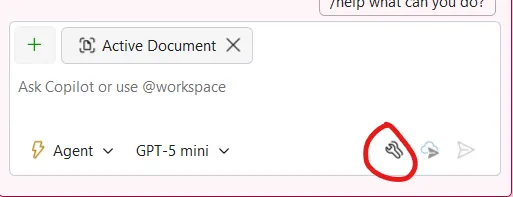
-
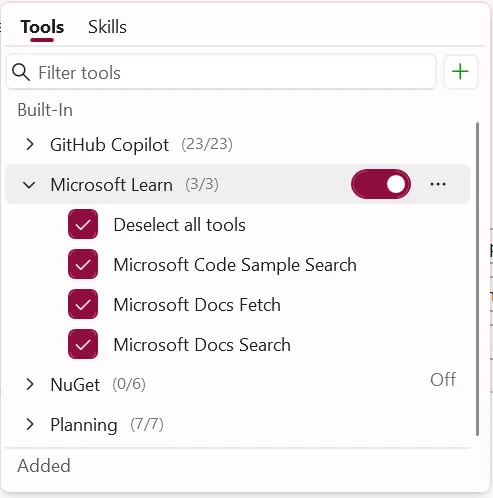
Tools that are built in and from MCP servers will appear.
-
Click the + icon to add a new MCP server and Add from MCP Registry.
-
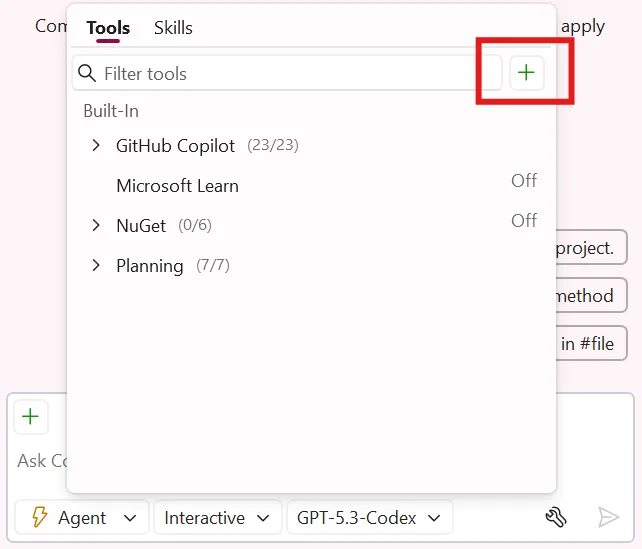
-
Specify the following
-
Search for GitHub
-
Click Install -> Trust and install Remote installation.
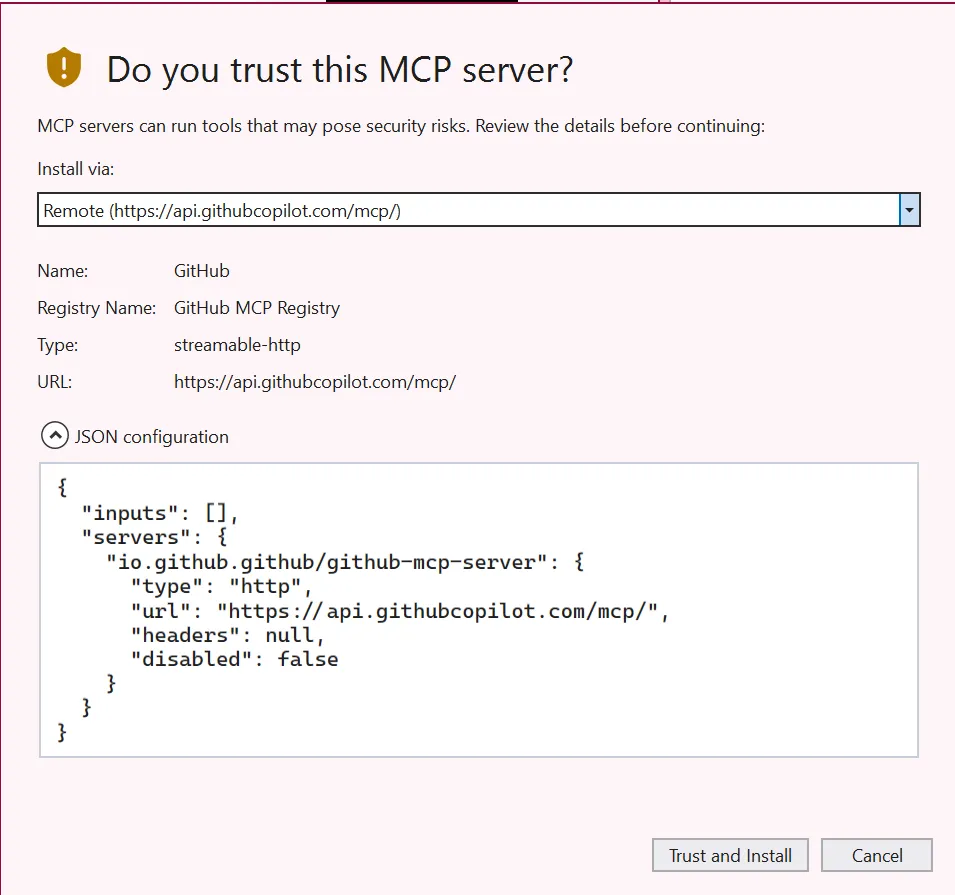
-
The GitHub MCP requires authentication. From the Tools menu in the chat, expand the Added GitHub MCP with the … and then select Edit:
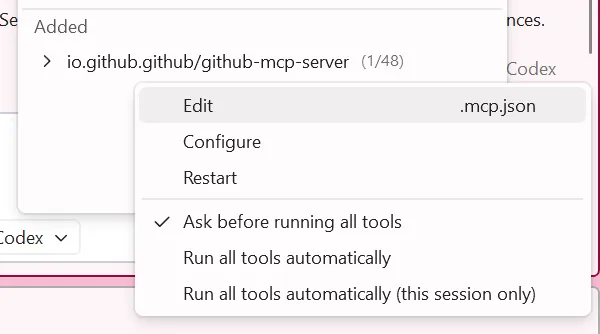
You will see a Authentication required message. Click on it and click Authenticate. Afer this you will see that it is online and ready to use.
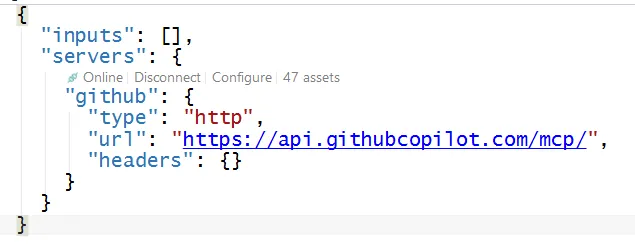
Visual Studio 2026 has a built in MCP gallery to help you easily install MCP server.:
-
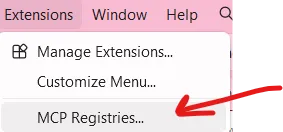
In Visual Studio 2026 go to Extensions -> MCP Registries… to open the MCP server management window.
-
Browse through existing MCP servers in the gallery.
Using MCP Servers to Get Information
Section titled “Using MCP Servers to Get Information”Now that you have the Microsoft Learn and GitHub MCP servers installed, let’s use them to get information about optimizing asset loading in the application.
- In Copilot Chat, switch to Agent mode.
- Ensure that the Microsoft Learn MCP server is selected as an active tool. If you don’t see it click on a new chat session or toggle modes:
- Type the following prompt:
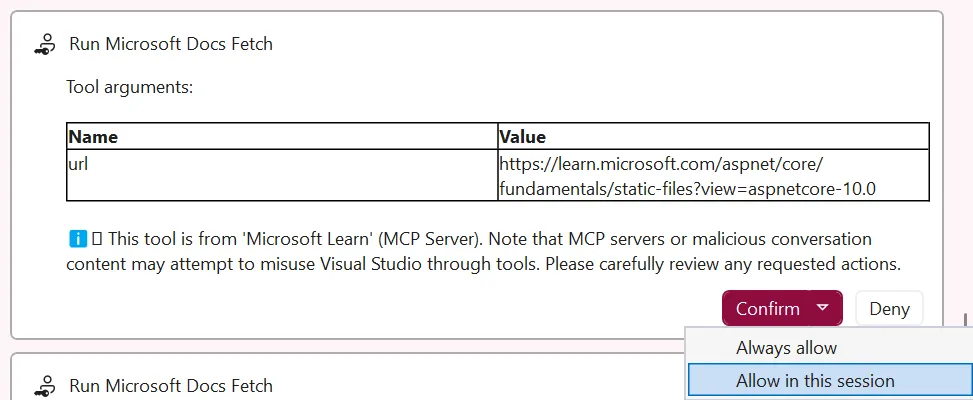
Using the Microsoft Learn docs mcp, what are the best practices for optimizing image loading and asset delivery in a Blazor Server application? - Copilot will ask for permission for each request. You can approve each manually or Allow in this session
- Review the response from Copilot, which now has access to the latest Microsoft documentation through the MCP server.
Creating GitHub Issues with MCP
Section titled “Creating GitHub Issues with MCP”The GitHub MCP server allows Copilot to interact with your GitHub repository. Let’s use it to create issues for improvements we want to make to the application.
-
Ensure that the GitHub MCP server is selected as an active tool in Copilot Chat and that the tools are enabled for .
-
In the same chat session, type:
Based on the asset optimization recommendations, create 3 GitHub issues for improving the TinyShop application's performance.NOTE: Copilot will use the GitHub MCP server to create the issues directly in your repository. You may be prompted to authorize the action.
-
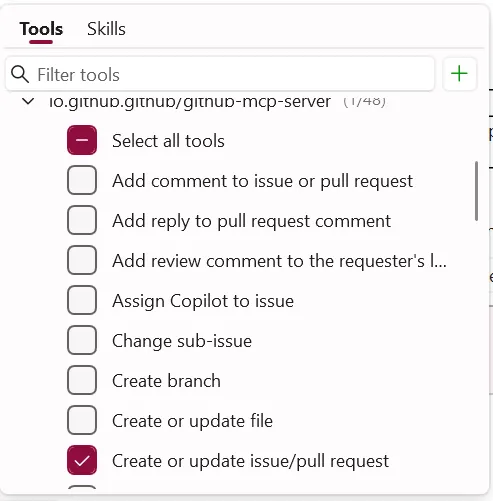
-
Review the issues that Copilot proposes to create.
-
Approve the creation of the issues when prompted.
-
Navigate to your GitHub repository to verify that the issues have been created.
Key Takeaway: MCP servers extend GitHub Copilot’s capabilities by connecting it to external services and documentation. This allows Copilot to provide more accurate, up-to-date information and perform actions like creating GitHub issues directly from the chat interface.
Check your understanding
Section titled “Check your understanding”Why can enabling fewer MCP toolsets improve both response quality and security?
Check your answer
Every enabled tool must be described in the model context, leaving less room for your code and conversation. A smaller toolset also makes it easier for Copilot to select the right capability and reduces the actions available if a prompt or server behaves unexpectedly. Enable the servers and tools relevant to the current task, then disable the rest.
Go deeper: Understand MCP toolset selection.
Back: Part 08 - Commit Summary Descriptions | Next: Part 10 - Planning Mode in Agent