
Part 06: Using Copilot Vision
In this section, you’ll use Copilot Vision. You can share screenshots of errors and Copilot will interpret the image and resolve the issue. Or share mockups of new designs, and Vision will help you bring them to life. Let’s update our design based on a photo our designer gave us.
Attach a design reference
Section titled “Attach a design reference”-
Open a new Copilot Chat thread in Agent mode.
-
Click the + button in the chat, select upload image, and select
eshop.pngfrom the root of your cloned TinyShop repository.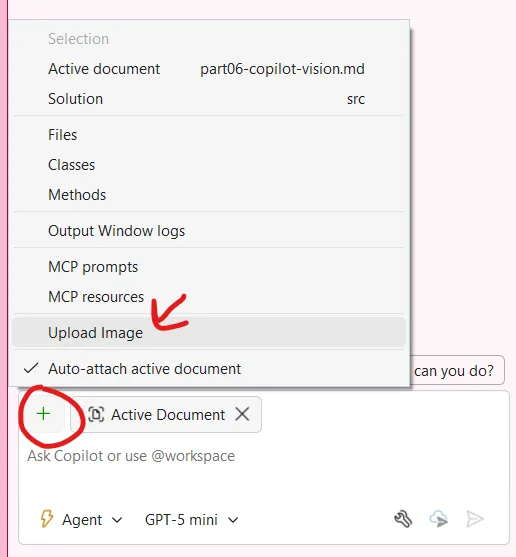
Generate the product grid
Section titled “Generate the product grid”- Ask:
Update the Products.razor to display products in a grid layout similar to this image. Add nice hover effects and make it responsive. - Review the suggested code changes and implement them. It should recommend changes to both the Products.razor and a new Products.razor.css
Run and refine the result
Section titled “Run and refine the result”- Run the application to see the updated product grid layout. You may have to clear the browser cache with CTRL+SHIFT+R if you don’t see the CSS update.
Key Takeaway: Copilot Vision can understand UI designs from images and help you implement them in your application.
Back: Part 05 - Implementing Features with Copilot Agent | Next: Part 07 - Debugging with Copilot