
Part 08: Commit Summary Descriptions
In this section, you’ll learn how to use GitHub Copilot to generate commit messages and customize them.
Generate a commit message
Section titled “Generate a commit message”-
Open the Git Changes view in Visual Studio (View -> Git Changes).
-
Select the sparkle emoji pencil button to automatically generate a commit message using Copilot.
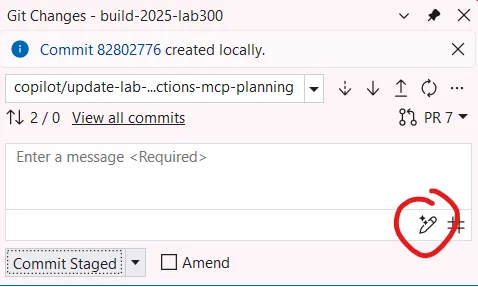
-
In Solution Explorer, expand the GitHub Node and open
copilot-instructions.md. -
At the bottom of the file, add:
## Commit MessagesWhen creating Commit messages, summarize in a few sentences and then highlight the top 5 changes with emoji and short descriptions -
Return to the Git Changes view and generate a new commit message.
-
Observe how the new commit message reflects the updated customization.
Key Takeaway: Copilot can help you create meaningful and well-structured commit messages, saving time and improving collaboration.
Code Reviews with Copilot
Section titled “Code Reviews with Copilot”-
Before submitting your changes, use the Code Review feature to analyze your code for potential improvements and suggestions.
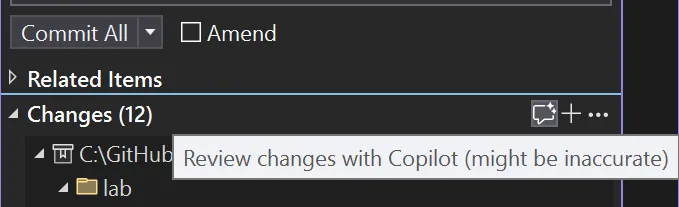
-
Review the suggestions provided by Copilot and apply any necessary changes if there are any.
Key Takeaway: Copilot’s Code Review feature can help you identify potential issues and improve code quality before submission.
Back: Part 07 - Debugging with Copilot | Next: Part 09 - MCP Servers